“Claude Code worktree” sounds like a feature you enable. Most of the time it is simpler than that: a worktree is a directory git creates, and Claude Code is a process that edits files in the directory where you start it. Put those two facts together and you have isolated agent sessions.
That distinction matters because the internet mixes three different things: git worktrees, the worktree features inside Claude Code’s own apps, and workspace tools that create worktrees for you. They share a name and a purpose, but the location, cleanup and review story changes depending on who created the directory.
What a git worktree actually is
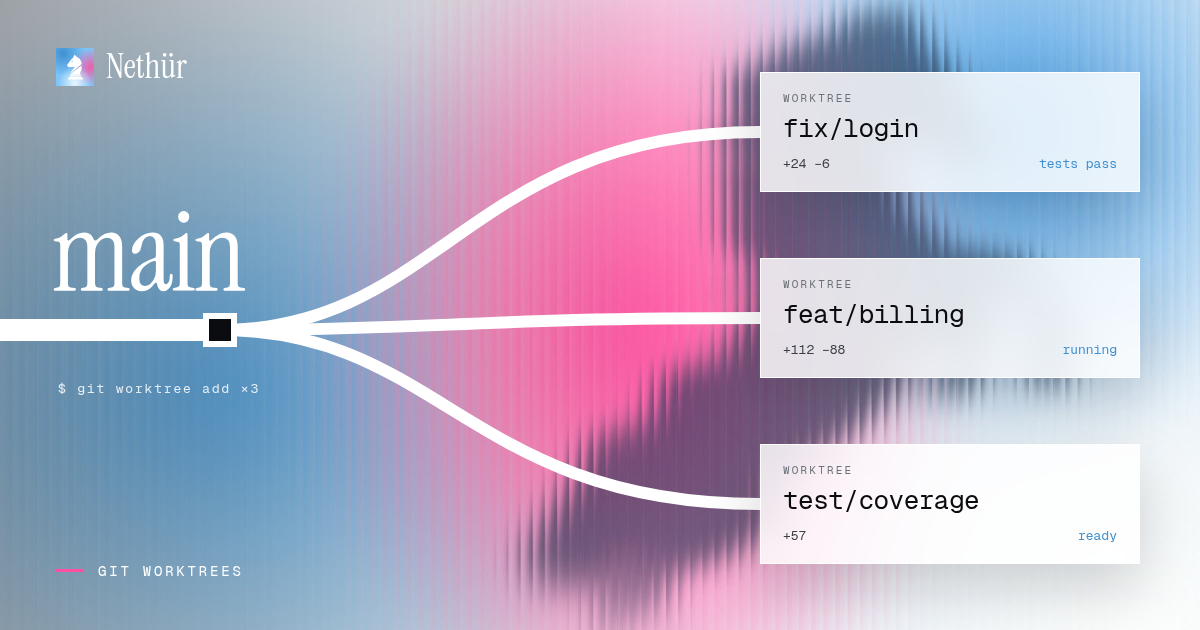
A normal clone has one working tree: the files you see in your editor. A git worktree lets the same repository have several working trees at once, each on a different branch. The object database and remotes are shared; the checked-out files and the index are not.
git worktree list
# /Users/you/app             abc1234 [main]
# /Users/you/app-fix-login def5678 [fix/login]- Each worktree has its own branch, HEAD, index and files on disk.
- You cannot check out the same branch in two worktrees at once.
- Deleting a worktree removes the directory and its checkout, not the branch history.
- Every worktree is still the same repository, so commits, fetches and pushes see the same objects.
This is exactly the isolation an agent needs. Claude Code can read, edit, run tests and commit in its worktree without touching the checkout you have open. If the agent breaks something, you delete the directory and keep your main branch.
Why Claude Code benefits from a worktree
An agent session is not a chat that happens to touch files. It runs commands, starts dev servers, writes generated files, stages changes and sometimes switches branches. Two sessions in one checkout share all of that state. The failure is rarely dramatic: a test passes against the wrong code, a formatter rewrites the other agent’s work, or a commit includes files from both tasks.
A worktree turns those shared-state failures into separate directories. The cost is that every new worktree starts clean: no node_modules, no .env, no local database. The rest of this guide is mostly about paying that cost deliberately.
Does Claude Code have a worktree mode?
The Claude Code CLI does not need a special mode to work in a worktree. Its session boundary is the working directory. Start claude inside ../app-fix-login and the session reads and writes there; start another inside ../app-fix-billing and it has a different branch and a different set of files.
Other Claude Code surfaces manage worktrees for you. The desktop app can run parallel sessions in isolated git worktrees, and agent teams or subagents can delegate work inside a session. Those are convenience layers: they create a checkout, put the agent in it and hide the path. If you need a predictable location, create the worktree yourself and launch Claude Code inside it.
Where should a Claude Code worktree live?
The location depends on who creates the worktree. For a manual setup, pass a path to git worktree add. Two conventions work well: a sibling directory next to the main checkout, or a dedicated worktrees/ folder outside the repository.
# sibling next to the main checkout
git worktree add ../app-fix-login -b fix/login origin/main

# or a dedicated root outside the repo
git worktree add ~/worktrees/app/fix-login -b fix/login origin/main
Keep worktrees outside the main checkout. A worktree inside the repository shows up in every search, confuses editor indexing and can be accidentally committed. If a tool creates worktrees in a hidden folder inside the repo, check whether that folder is gitignored before you rely on it.
Nethür creates worktrees in its own managed directory and tracks the path for you. If you already have worktrees created by Claude Code, GSD or plain git worktree add, Nethür can show them as external worktrees instead of asking you to move them. Settings → General → Workspace controls which external sources are visible and which location roots are scanned.
If you would rather not manage paths by hand, a git worktree GUI such as Nethür can create, track and clean up worktrees for you while still leaving a normal checkout on disk.
Create a worktree and start Claude Code
Start from an up-to-date base ref so the agent is not working against last week’s code.
git fetch origin
git worktree add ../app-fix-login -b fix/login origin/main
cd ../app-fix-login
claude
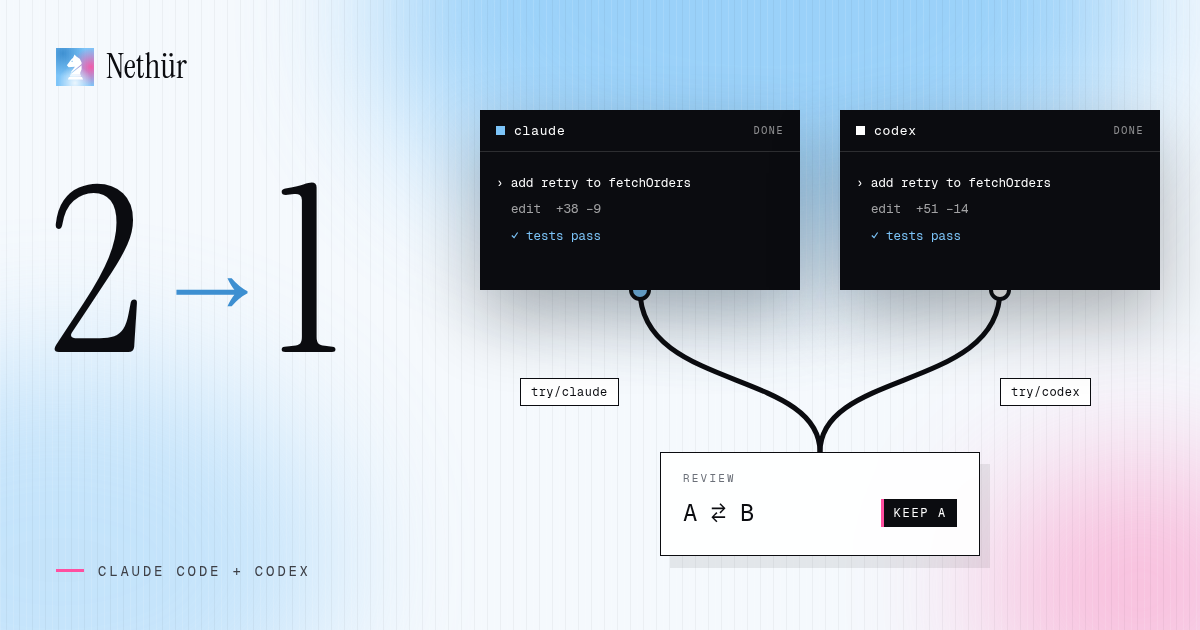
Use a unique branch name per worktree. If you want a second agent on the same task, create a second worktree with a different branch, even if the prompt is identical. The branch is what makes the two results comparable and mergeable independently.
In Nethür, the same step is a dialog: create a worktree, name the task, pick the start-from ref and choose the agent. Nethür runs git fetch and git worktree add in the background, shows the workspace while it is being created and opens the agent in the new checkout. The worktree docs cover the start-from picker, folder workspaces and linked issues.
Dependencies, env files and ports
A fresh worktree is a clean checkout, which means it is missing everything git ignores. There are three ways to handle that, and most teams end up using all three.
- Install per worktree. Correct and simple, but slow and disk-hungry when every agent needs its own
node_modules. - Share the heavy, rebuildable directories. Nethür’s Worktree Shared Paths materialize gitignored directories from the primary checkout, with
worktree.sharedDirectoriesinnethur.yamlfor repo-level definitions. - Copy the small, worktree-specific files.
.worktreeincludelists gitignored files and directories to copy, such as.envor local editor settings, so each worktree owns its copy.
# nethur.yaml at the repo root
worktree:
  sharedDirectories:
    - node_modules
    - .cache

# .worktreeinclude at the repo root
.env
.env.local
.vscode/settings.json
Ports deserve their own rule. If two agents start the same dev server, the second one fails or, worse, connects to the first one’s database. Put the port and database name in an environment file per worktree, or have the setup hook derive them from the worktree name.
Review the diff, then remove the worktree
Review each worktree against the ref it started from, not against whatever happens to be on main now. That keeps the diff focused on the agent’s work. Nethür shows the diff per workspace, supports inline annotations and can send review notes back to the agent before you commit.
When the work is merged, remove the worktree and the branch. Do not delete the directory by hand: git keeps metadata under .git/worktrees, and a manual rm -rf leaves a stale entry behind.
git worktree remove ../app-fix-login
git branch -d fix/login

# if git refuses because the branch has unmerged commits
git worktree remove --force ../app-fix-login
Git may keep a local branch that contains unmerged commits even after the worktree is gone. That is a safety net, not a bug. Nethür surfaces kept branches in a review step so you can decide which ones to force-delete instead of hunting them down later.
Common worktree mistakes
- Checking out the same branch in two worktrees. Git refuses; pick a different branch for the second agent.
- Putting the worktree inside the repo. Searches and editors see duplicate files, and the directory can be committed.
- Sharing one
.envthat points at the main database. Each agent should get its own database or schema when migrations are involved. - Forgetting the base ref. A worktree created from a stale local branch produces a confusing diff and a painful merge.
- Leaving dozens of worktrees open after the experiment. Clean up the branches while you still remember which one won.
Worktrees on a team
On a team server, worktrees stop being private directories. They are shared project state: a teammate can see that a worktree exists, who created it, which agent is running and whether it is blocked. That visibility is what makes handing work over safe.
Nethür keeps the same worktree model whether it runs on your laptop, a teammate’s machine, a VPS or an SSH target. The agent runs where the checkout lives, and the client only renders the session. If you want the team version of this setup, read Claude Code for teams.
Try it on one task
Create one worktree for a small change, launch Claude Code inside it, and keep your main checkout open next to it. Once you see the two sessions stop interfering, the extra directory stops feeling like overhead. The parallel agents guide shows how to scale that to several agents and compare their results.