
Remote Nethür Servers
Keep Nethür running on another computer and connect from the browser, desktop app or phone.
A Remote Nethür Server lets one machine do the work while a browser, desktop app or phone provides the UI. The server keeps the projects, workspaces, terminals, tabs, provider accounts and agent sessions. The client connects to that running Nethür instance.
The easiest setup is the Nethür desktop app on both computers, connected through Tailscale. You do not need to run nethur serve for this path.
What runs where
Client computer · Nethür client
  Shows the UI and sends your input
                 │
                 │ private network route
                 ▼
Server computer · Nethür server
  Stores repos and worktrees
  Runs terminals and agents
Install and authenticate Codex, Claude Code, OpenCode, git, and any provider CLIs on the server computer. A login in your browser or desktop app does not automatically carry over to the server.
On a headless nethur serve host, register managed Claude/Codex accounts from the server shell (the remote client disables Add account):
nethur account add --agent claude
nethur account add --agent codex
nethur account list
Install or refresh agent skills without a Settings UI:
nethur skills install --skill nethur-cli --skill orchestration
nethur skills update --all
Recommended: a private network route
You need:
- Nethür installed and updated on both computers
- Tailscale installed on both computers
- Both computers signed in to the same tailnet
- The server computer awake, online, and running Nethür
Tailscale gives the server a private address that usually starts with 100.. Nethür puts that address first in its connection-address picker.
1. Create an access link on the server
On the computer that should keep the sessions running:
- Open the Nethür desktop app.
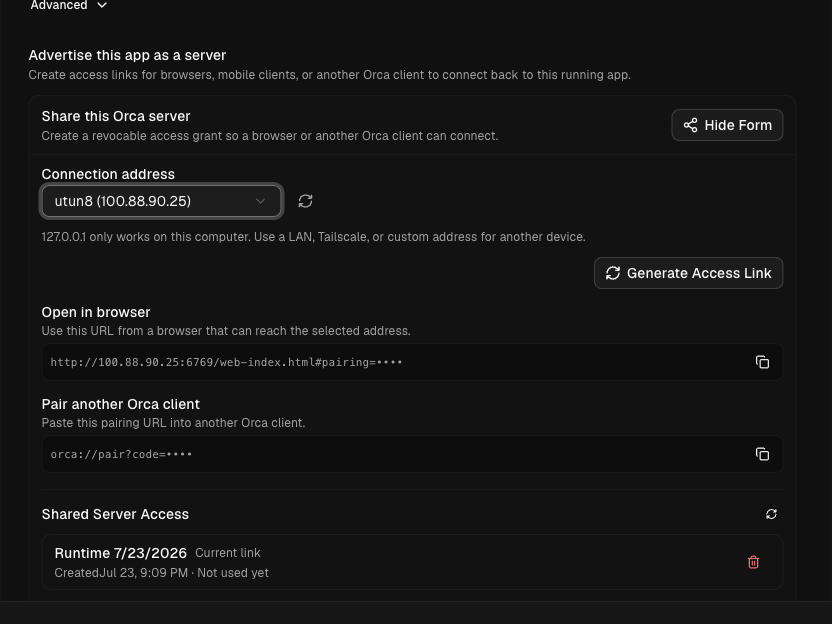
- Open Settings → Remote Nethür Servers.
- Under Advertise this app as a server, click New Link.
- For Connection address, select the Tailscale address. It usually looks like
100.x.y.z. - Click Generate Access Link.
- Copy the link under Pair another Nethür client.
If the Tailscale address is missing, confirm Tailscale is connected and click the refresh button beside Connection address.
2. Add the server in Nethür
On the computer you want to use as the client:
- Open Settings → Remote Nethür Servers.
- Click Add Server.
- Enter a recognizable name, such as
Remote Server. - Paste the access link from the server.
- Click Add Server.
- If the saved server shows Disconnected, click Connect.
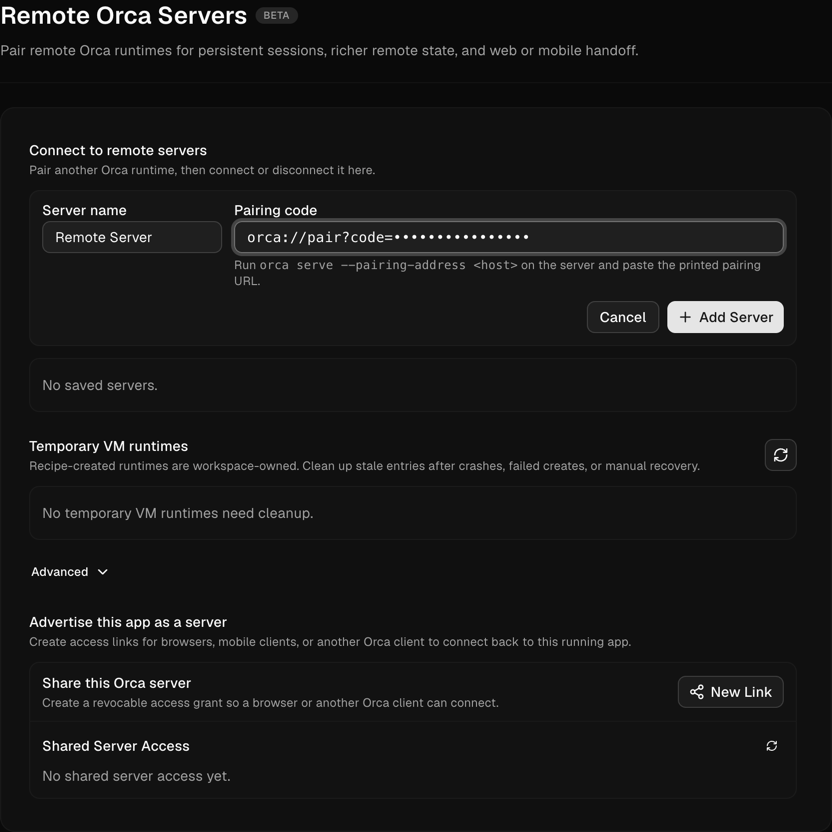
Adding a server saves it without forcing every new project onto it. Open Advanced → Default host for new projects only when you want server-routed projects, terminals, provider checks, and browser or mobile handoff to use that server by default.
Use the remote server
Once the server shows Connected, select it or one of its projects and use Nethür normally. Terminals, agent processes, files, worktrees, and session state live on the server computer.
When several paired clients share that server, the sidebar filter can offer Hide other-client workspaces so this device only lists workspaces it created. See Worktrees → Sidebar layout.
That means:
- agents keep running when the client browser or desktop app disconnects;
- the server needs the repository, tools, and credentials used by those agents;
- the server must stay awake and connected to the tailnet;
- reconnecting the client or reopening Nethür returns you to the server-owned workspace, tab, and visible-pane state without duplicating paired tabs;
- projects you delete on the server disappear from every paired client's sidebar (no permanent ghost rows).
Access and security
Nethür creates a separate, revocable token for each paired client. The server lists these under Shared Server Access.
- Click the trash button beside a grant to revoke it. Active clients using that grant are disconnected immediately.
- Generating another link replaces the previous unused link. Clients that already paired keep their own grants until you revoke them.
- Keep Tailscale ACLs or grants as narrow as your setup allows.
- Do not forward the Nethür port directly to the public internet. Prefer Tailscale, WireGuard, a trusted LAN, SSH forwarding, or an authenticated tunnel.
- Do not select
127.0.0.1for another computer. That address only works on the server itself.
Alternative: nethur serve
Use nethur serve when the host should run without the desktop window—for example, a headless Linux server or a service-managed VM. For a MacBook or desktop you can leave signed in, the in-app setup above is simpler.
Install Nethür and its bundled CLI on the server, then run:
nethur serve --pairing-address <server-tailscale-ip-or-hostname>
# Linux
nethur-ide serve --pairing-address <server-tailscale-ip-or-hostname>
For example:
nethur serve --pairing-address 100.64.1.20
# Linux
nethur-ide serve --pairing-address 100.64.1.20
The command:
- starts the Nethür runtime without opening the desktop window;
- runs in the foreground until you press
Ctrl-C; - prints the bound endpoint and a runtime pairing URL;
- uses
--pairing-addressonly for the address clients should dial.
Paste the printed pairing URL into Settings → Remote Nethür Servers → Add Server on the client.
Add --port 6768 when a firewall, tunnel, or service definition requires a fixed port:
nethur serve --port 6768 --pairing-address 100.64.1.20
# Linux
nethur-ide serve --port 6768 --pairing-address 100.64.1.20
Use only one host mode at a time. If the Nethür desktop app is already sharing that computer, do not start a second nethur serve process for the same setup.
nethur serve runs on Nethür's own Node server (nethurd) by default. If nethurd can't serve on this computer, it uses the desktop app's server instead and prints one line saying why. On a packaged macOS app it currently always uses the desktop app's server, so paired clients can still update it. To always use the desktop app's server, set NETHUR_SERVE_RUNTIME=electron.
Limit terminal memory on a Linux server
By default, nothing caps how much memory a terminal's processes use, so one runaway job can push the whole server into the kernel's out-of-memory killer. On Linux you can cap each terminal by setting these variables in the environment that starts nethur serve (or in its service unit):
export NETHUR_TERMINAL_MEMORY_MAX=16G      # memory per terminal, 256M or more
export NETHUR_TERMINAL_MEMORY_SWAP_MAX=0   # swap per terminal; 0 means no swap
nethur-ide serve --pairing-address 100.64.1.20- Each terminal already runs in its own systemd user scope. The limits become that scope's
MemoryMaxandMemorySwapMax. - When a terminal goes over its limit, the kernel kills its largest process. Typically that is the job, and the shell keeps running. The server and every other terminal keep running.
- The limits are off by default because Nethür can't know what a sensible limit is for your workloads.
- They need systemd with cgroup v2 and a user manager that outlives logout (
loginctl enable-linger <user>). If the host can't enforce a limit, Nethür skips it, logsterminal-memory-limitsin the terminal host log, and starts terminals without it. - Nethür reads them only when its terminal host process starts. That process keeps running when
nethur serverestarts, so terminals keep their old limits until it restarts too, for example after the server reboots. - They have no effect on macOS or Windows.
Mobile from a headless server
For the Nethür mobile app, request a mobile-scoped QR code and link:
nethur serve --pairing-address 100.64.1.20 --mobile-pairing
# Linux
nethur-ide serve --pairing-address 100.64.1.20 --mobile-pairing
Keep the phone on the same tailnet, open Nethür Mobile, choose Pair, and scan the terminal QR code or paste the printed link.
Desktop app or nethur serve?
| Desktop app on the server | nethur serve | |
|---|---|---|
| Best for | An old laptop, Mac mini, or desktop | A headless Linux box, VM, or managed service |
| Setup | Settings and buttons | Terminal command and service configuration |
| Server window | Open | None |
| Access link | New Link → Generate Access Link | Printed in the terminal |
| Lifetime | While the desktop app is running | While the foreground process or service is running |
Remote Nethür Server or SSH?
Use SSH worktrees when the Nethür server should own the runtime and use another machine only to run selected workspaces and terminals.
Use a Remote Nethür Server when the other machine should own the full Nethür runtime and preserve shared sessions for desktop, browser, mobile, or automation clients.
See Ways to run Nethür for the full comparison.
Troubleshooting
The Tailscale address is not listed
On the server, confirm Tailscale is connected, then click the refresh button beside Connection address. Both computers must be signed in to the same tailnet. A Tailscale IPv4 address usually starts with 100..
The server is disconnected
Confirm the server computer is awake, Nethür is still running, and Tailscale shows both devices online. Check your tailnet ACLs or grants if one device cannot reach the other.
Update Nethür on both computers if the server row reports an incompatible protocol version.
The access link was shared with the wrong person
On the server, open Settings → Remote Nethür Servers → Shared Server Access and revoke that grant. Generate a new link for the intended client.
The server cannot find an agent CLI
Install and authenticate that CLI on the server computer. Remote sessions use the server's PATH, home directory, and credentials—not the client's.
nethur serve advertises the wrong address
Stop the command and restart it with an address the client can reach:
nethur serve --pairing-address <reachable-tailscale-ip-or-hostname>Do not use a wildcard address or 127.0.0.1 for a remote client.
Next steps
- Compare every run mode in Ways to run Nethür.
- Use SSH worktrees when the Nethür server should own the runtime.
- See the Nethür CLI reference for
nethur serveflags and automation commands.